Knowledge Centre

Keep your firm’s procedures where the work happens

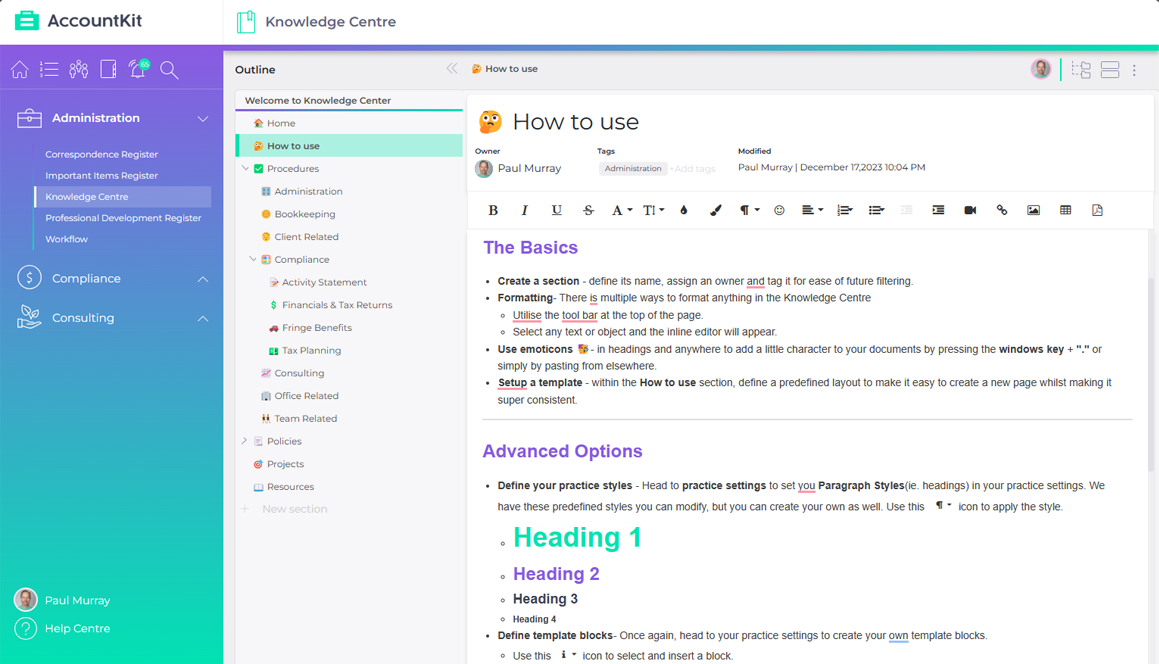
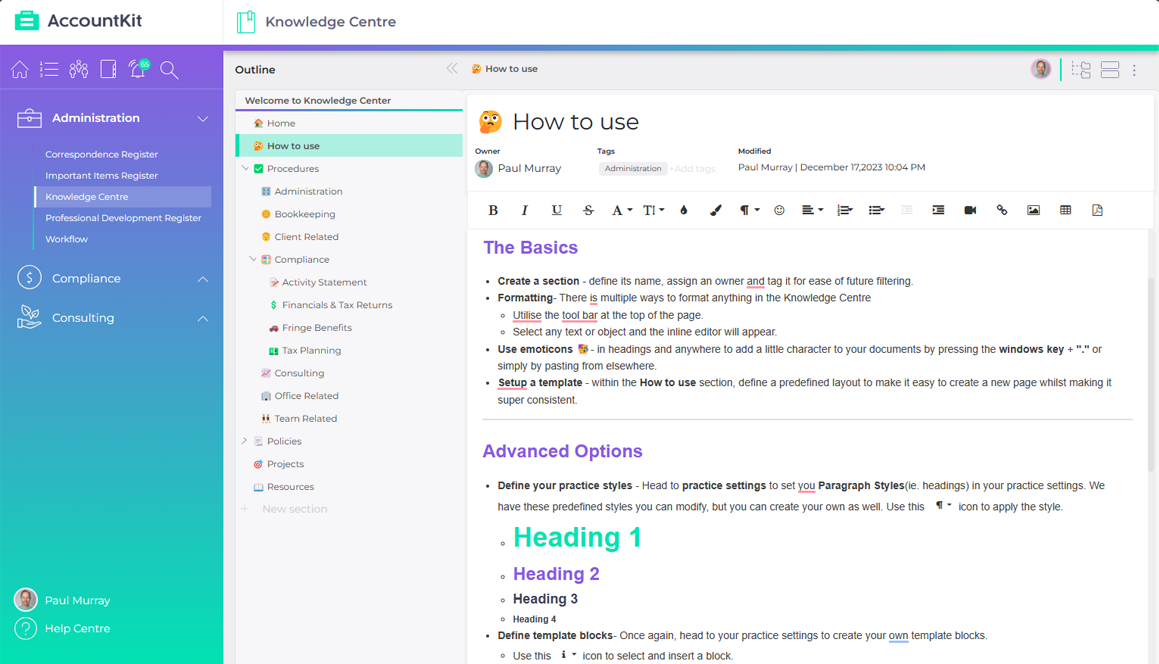
The Knowledge Centre is your firm’s wiki for its systems, processes and policies, a couple of clicks from where the team already works. Write each one with screenshots and video, then link it from the workflow tasks that need it.

Full functionality on the Practice tier
Outline

Your Knowledge Centre

  • Home
  • How to use
  • Policies
  • Procedures
  • Information Technology
  • Administration
  • AI Utilisation
  • Bookkeeping
  • Compliance
  • Account Reconciler
  • Activity Statement
  • Client Maps
  • Equipment Finance
  • Financials & Tax Returns
  • Fringe Benefits
  • Tax Planning
  • Consulting
  • Office Related
  • Projects
  • Team Building
  • Resources
Procedures Compliance Activity Statement

Activity Statement

OwnerMCMaya ChenTagsActivity Statement

Overview

Preparing a BAS starts with making sure the data is right. The workflow task template lists each step; this article has the detail behind them, from end to end.

The Detail

Step 1 - Getting set up

Check the client’s queries email has gone before you start processing.

  1. Set up the BAS folder from the folder template in the client’s document management.
  2. Prepare the BAS working paper and the queries email to the client.
  3. Name each verification as <account code> - <account name> - <description>.

Step 2 - Processing

  1. Reconcile the bank, credit card and loan accounts.
  2. Review the general ledger and recode anything that stands out.

Illustrative view. A sample firm’s articles.

What goes wrong today

  • The procedures live in Word documents

    They sit in a folder nobody opens, so nobody keeps them current, and the team stops trusting them.

  • A checklist doesn’t explain the detail

    A task list says what to do, but the screenshots and the reasons live somewhere else, if they exist at all.

  • One person holds the process

    When the person who always does year end is away, the rest of the team works it out again.

From the outline to the job

From one procedure to every job that needs it

This is a sample firm’s Knowledge Centre, with its BAS procedure filed under Procedures and Compliance. The articles are examples, but each step works the way the tool does.

Find any article in a few letters

The outline holds every policy, procedure and resource. Type in the search box and the outline narrows as you go, with the match highlighted in each title.

Copy a direct link to any article

Copy the link from the top of the article or from the outline, then send it to a colleague in Teams or Slack.

Open the procedure from the task

Paste the link into a workflow task template. The task keeps the short step, and the full procedure is a click away on every job.

Export a whole section to PDF

Show every sub-page in a section, or switch to the full-page layout, then export everything on screen to PDF.

  • Find any article in a few letters
  • Copy a direct link to any article
  • Open the procedure from the task
  • Export a whole section to PDF

Find any article in a few letters

The outline holds every policy, procedure and resource. Type in the search box and the outline narrows as you go, with the match highlighted in each title.

Outline

Your Knowledge Centre

  • Procedures
  • Compliance
  • Financials & Tax Returns
  • Tax Planning
Procedures Compliance Activity Statement

Activity Statement

OwnerMCMaya ChenTagsActivity StatementComplianceModifiedPaul Murray | September 21, 2026 3:08 PM

Overview

Preparing a BAS starts with making sure the data is right. The workflow task template lists each step; this article has the detail behind them, from end to end.

The Detail

Step 1 - Getting set up

Check the client’s queries email has gone before you start processing.

  1. Set up the BAS folder from the folder template in the client’s document management.
  2. Prepare the BAS working paper and the queries email to the client.
  3. Name each verification as <account code> - <account name> - <description>.

Step 2 - Processing

  1. Reconcile the bank, credit card and loan accounts.
  2. Review the general ledger and recode anything that stands out.

Illustrative AccountKit Knowledge Centre. A sample firm’s articles and a sample client job.

Copy a direct link to any article

Copy the link from the top of the article or from the outline, then send it to a colleague in Teams or Slack.

Outline

Your Knowledge Centre

  • Home
  • How to use
  • Policies
  • Procedures
  • Information Technology
  • Administration
  • AI Utilisation
  • Bookkeeping
  • Compliance
  • Account Reconciler
  • Activity Statement
  • Client Maps
  • Equipment Finance
  • Financials & Tax Returns
  • Fringe Benefits
  • Tax Planning
  • Consulting
  • Office Related
  • Projects
  • Team Building
  • Resources
Procedures Compliance Activity Statement

Activity Statement

OwnerMCMaya ChenTagsActivity StatementComplianceModifiedPaul Murray | September 21, 2026 3:08 PM

Overview

Preparing a BAS starts with making sure the data is right. The workflow task template lists each step; this article has the detail behind them, from end to end.

The Detail

Step 1 - Getting set up

Check the client’s queries email has gone before you start processing.

  1. Set up the BAS folder from the folder template in the client’s document management.
  2. Prepare the BAS working paper and the queries email to the client.
  3. Name each verification as <account code> - <account name> - <description>.

Step 2 - Processing

  1. Reconcile the bank, credit card and loan accounts.
  2. Review the general ledger and recode anything that stands out.

Link to Activity Statement copied

Illustrative AccountKit Knowledge Centre. A sample firm’s articles and a sample client job.

Open the procedure from the task

Paste the link into a workflow task template. The task keeps the short step, and the full procedure is a click away on every job.

Business Activity StatementBull Antics Pty Ltd2026/27 | Jul - Sep | Business Activity Statement
Sample BAS job task list for Bull Antics Pty Ltd, with each task's short instruction. The first task links to the Activity Statement procedure in the Knowledge Centre.
Task ListLinksInformation
Getting Prepared 0/3
Contact client for infoAsk early, so the client has time to gather what we need. Use the queries email template.
Review prior periodCheck last quarter’s notes for anything to carry forward.
Prepare the summary email templateNote the findings for the client as you go.
Processing 0/5
Reconcile bank, credit card and loan accountsEvery account reconciled to the statement date.
Export the general ledger report and reviewLook for anything that stands out and recode it. Note it in the summary email.
Reconcile equipment finance accountsCheck each one agrees with AccountKit and adjust if it doesn’t.
Review debtors and creditorsLook for duplicates and anything that may need writing off.
Reconcile inter-entity loansItems are often hiding here.

Illustrative AccountKit Knowledge Centre. A sample firm’s articles and a sample client job.

Export a whole section to PDF

Show every sub-page in a section, or switch to the full-page layout, then export everything on screen to PDF.

Export to PDF
AccountKit
Knowledge CentreProcedures / CompliancePaul Murray | October 02, 2026 2:40 PM

Account Reconciler

Owner: Paul Murray

Overview

Each month, every balance sheet account is reconciled and verified in AccountKit, so year end starts from balances we already trust.

The Detail

Step 1 - Monthly review

  1. Open the client’s reconciler and work through the accounts marked for review.
  2. Attach the statement or schedule that supports each balance.

Activity Statement

Owner: Maya Chen

Overview

Preparing a BAS starts with making sure the data is right. The workflow task template lists each step; this article has the detail behind them, from end to end.

The Detail

Step 1 - Getting set up

Check the client’s queries email has gone before you start processing.

  1. Set up the BAS folder from the folder template in the client’s document management.
  2. Prepare the BAS working paper and the queries email to the client.
  3. Name each verification as <account code> - <account name> - <description>.

Step 2 - Processing

  1. Reconcile the bank, credit card and loan accounts.
  2. Review the general ledger and recode anything that stands out.

Illustrative AccountKit Knowledge Centre. A sample firm’s articles and a sample client job.

Who it’s for

Built for firms writing down how they work

Practices standardising their processes, with an owner for each article to keep it current. Callout styles are set in practice settings and dividers follow the practice colours, so every article looks like the firm’s own.

How often it comes round

Whenever a process changes, and every time a workflow task points to the procedure behind it.

Getting started
Arrange the outline and give each area an owner.
As you go
Turn short workflow steps into full articles and link them back.
When a process changes
The owner updates the article, and every linked task opens the new version.

Questions

What practices ask about Knowledge Centre

Does the Knowledge Centre come with a structure?

Yes. It starts with a basic framework you can rearrange, so the team isn’t facing a blank page.

How does the Knowledge Centre connect to Workflow?

Copy a direct link to any article and add it to a workflow task template. The short instruction sits in the task and the detail sits in the Knowledge Centre.

How do we find an article?

Type in the search box above the outline. The outline narrows as you type and highlights the match in each title.

Can we make articles look like our firm’s?

Yes. Callout block styles are set in practice settings, and dividers follow your practice’s theme colours.

Can we export articles to PDF?

Yes. Show every sub-page in a section, or switch to the full-page layout, then export everything visible to PDF.

Which AccountKit plan includes the Knowledge Centre?

Full functionality is on the Practice tier.

The heart of your firm

Write your firm’s procedures once, in one place

Start a free 14-day trial and document one process the whole team uses, or book a demo to see the Knowledge Centre with the team.